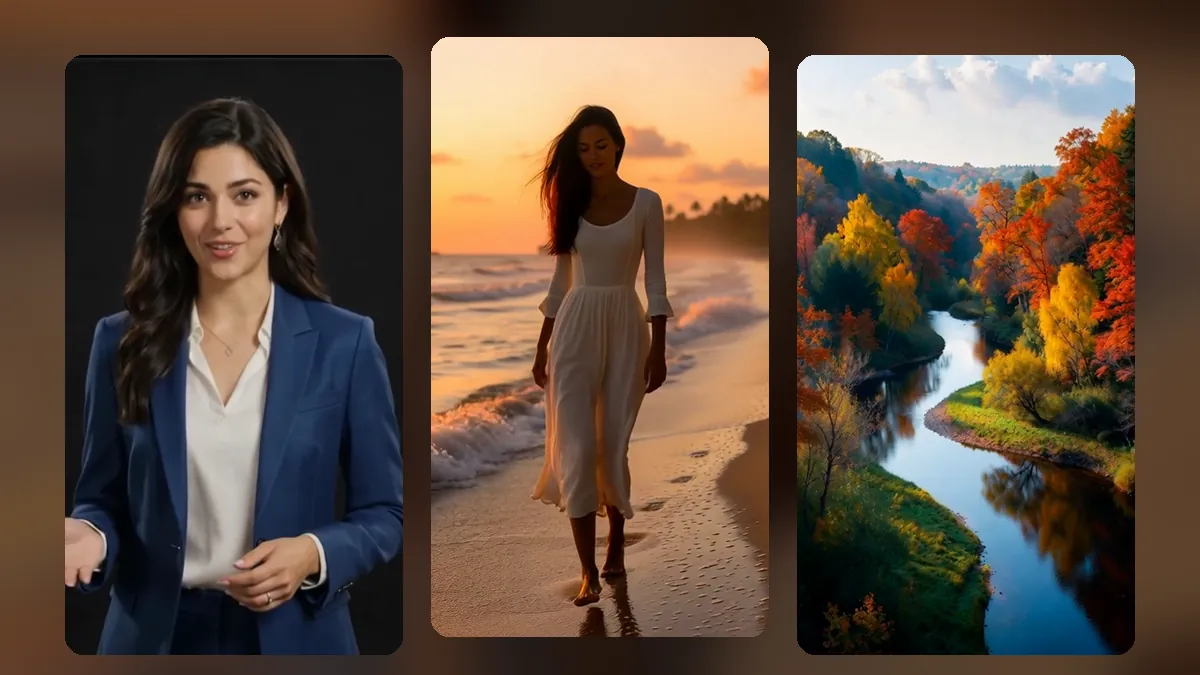
You already have the hard part: a long video full of good moments. A podcast episode, a webinar, a vlog, a lesson, a live stream. The problem is that almost nobody watches the whole thing, while short vertical clips get seen by people who have never heard of you. This guide shows how to turn long videos into shorts without spending a whole evening in an editor.
Why one long video should become many shorts
A 30-minute video usually holds five to fifteen moments that make sense on their own: a strong opinion, a funny reaction, a clear tip, a story with an ending. Each one can be a short. Posting those clips does three things:
- It reaches new viewers. Shorts feeds show your clip to people who do not follow you yet.
- It sends people back to the full video. A good clip makes viewers curious about the rest.
- It keeps your channel active. One recording gives you a week or two of posts.
Step 1: Pick moments that stand on their own
A short works when a stranger understands it with no context. When you look for clips, ask:
- Does the first sentence make sense without the previous minute?
- Is there one clear idea, answer or punchline?
- Does it end on a finished sentence, not halfway through a thought?
Doing this by hand means scrubbing through the timeline and taking notes. VideoShort.ai does the first pass for you: it writes down every word that is spoken, looks at scene changes and the energy of the sound, and suggests clips that start and end on full sentences. You keep the ones you like and drop the rest.
If you already know which part you want, choose "I'll cut it myself" and mark the start and end on the timeline instead.
Step 2: Make the picture vertical, and keep the person in frame
Long videos are usually wide (16:9). Shorts are tall (9:16). Cutting the middle out of a wide picture often loses the person who is talking. That is why the framing step matters.
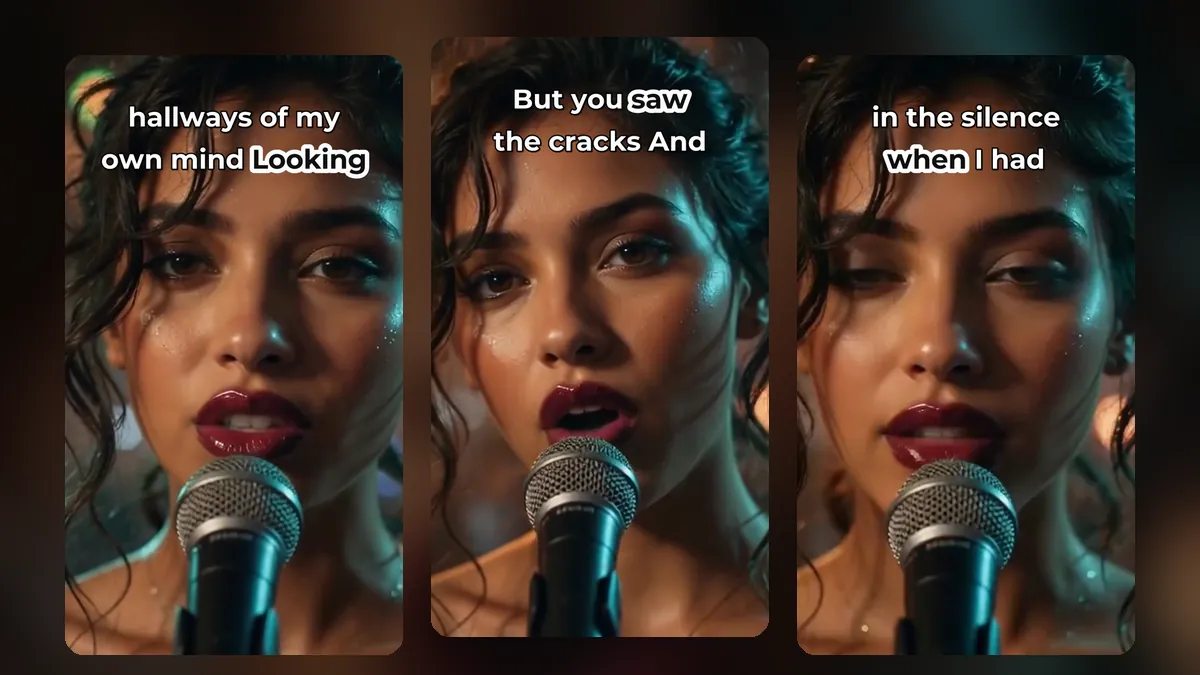
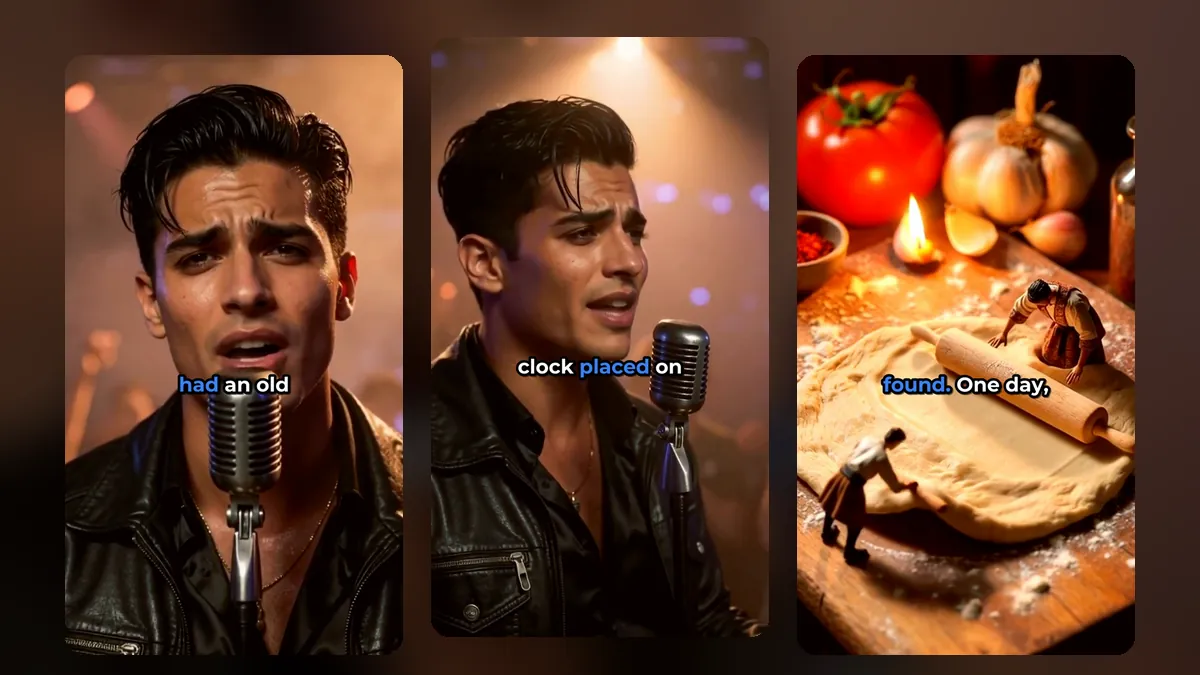
A clip from a music video made with MusicClip.ai. Press play to hear it.
In VideoShort you choose how the video fits the phone:
- Auto follows the person who is speaking.
- Director adds close-ups and short cuts between people, like a live edit.
- Centre keeps the middle of the picture.
- Move and zoom lets you drag the picture and choose the part you want.
- Whole picture shows the full wide frame with a soft, blurred copy filling the space around it.
We explain the framing options in more detail in how to reframe a horizontal video to vertical.
Step 3: Add captions people can read with the sound off
Many people scroll with the sound off. Captions turn your clip into something they can follow anyway. Good short-form captions are:
- Big and short: two to six words on screen at a time.
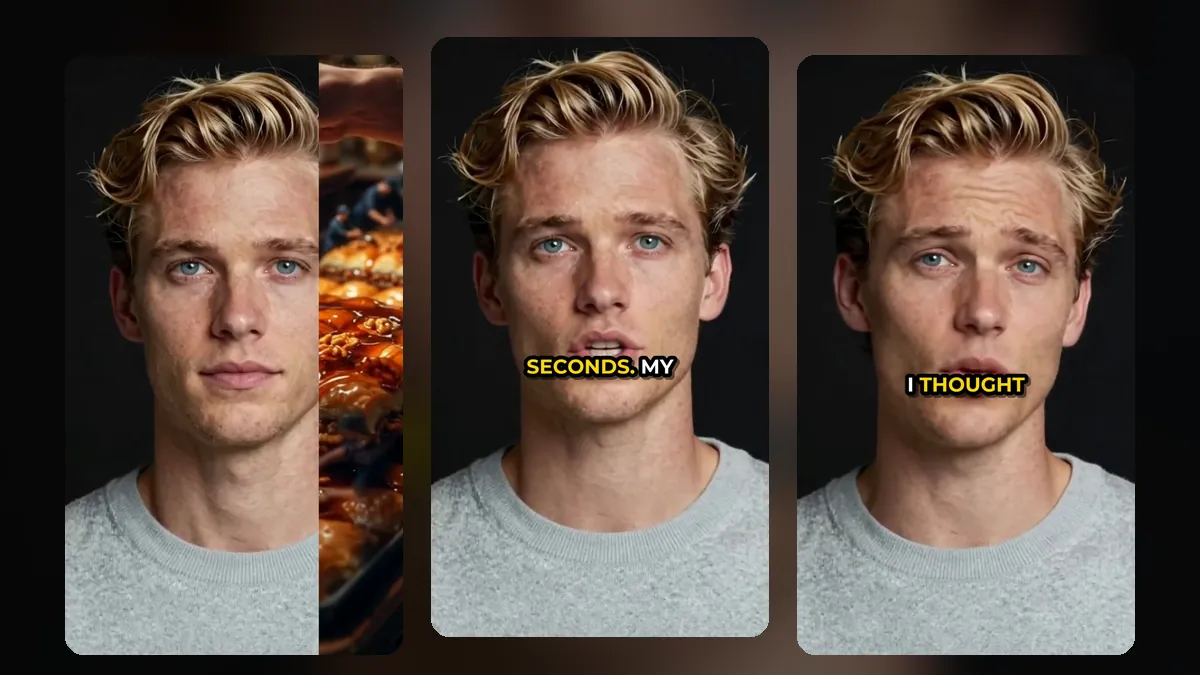
- Timed to speech: the spoken word lights up as it is said.
- Placed safely: away from the buttons and the description at the bottom of the app.
VideoShort writes the captions from the speech and gives you 43 caption styles, 14 fonts, your own colours and a size slider. You can drag the caption to any height on the video and fix any word that was heard wrong. See caption styles for shorts for how to choose one.
Step 4: Check the first two seconds
The opening decides whether someone stays. Before you export, watch only the first two seconds of each clip:
- Does it start on a word, not on silence?
- Is the face or the subject in frame?
- Would you stop scrolling?
If not, drag the start of the clip forward a little. In the clip timeline you can extend or shorten a clip, split it into two, and undo any change.
Step 5: Export and post on a plan
Download each short as an MP4. You can also download the captions as an SRT file, or all clips at once as a ZIP. Then spread them out. Posting all ten clips on the same day wastes most of them. Our guide to a shorts posting schedule shows a simple weekly rhythm, and the calendar in your VideoShort dashboard reminds you when each post is due.
A quick checklist
- One clear idea per clip
- Starts on a word, ends on a finished sentence
- Person or subject stays in frame
- Captions large, short and above the bottom buttons
- Clip length fits the platform (see the best length for shorts)
What if your long video is a song?
Musicians have the same problem in reverse: they have a song but no video at all. If that is you, MusicClip.ai makes a full music video from your track, and VideoShort can then cut that music video into shorts. We cover that workflow in how to turn a music video into shorts.
Frequently asked questions
How many shorts can I get from one long video?
It depends on the content. A talk-heavy 30-minute video often gives five to fifteen usable clips. Videos with long silent parts give fewer.
Do I need to upload the whole video?
On a computer with Chrome or Edge, VideoShort prepares large videos in your browser and sends only the sound and the parts it needs. Read more in how to make shorts from large video files.
Can I edit a short after it is made?
Yes. Open it in the editor to trim, split, change the caption style or the look, and render it again.
Start with the video you already have
Your next short is probably sitting inside your last long video. Create a VideoShort account and turn it into clips today.