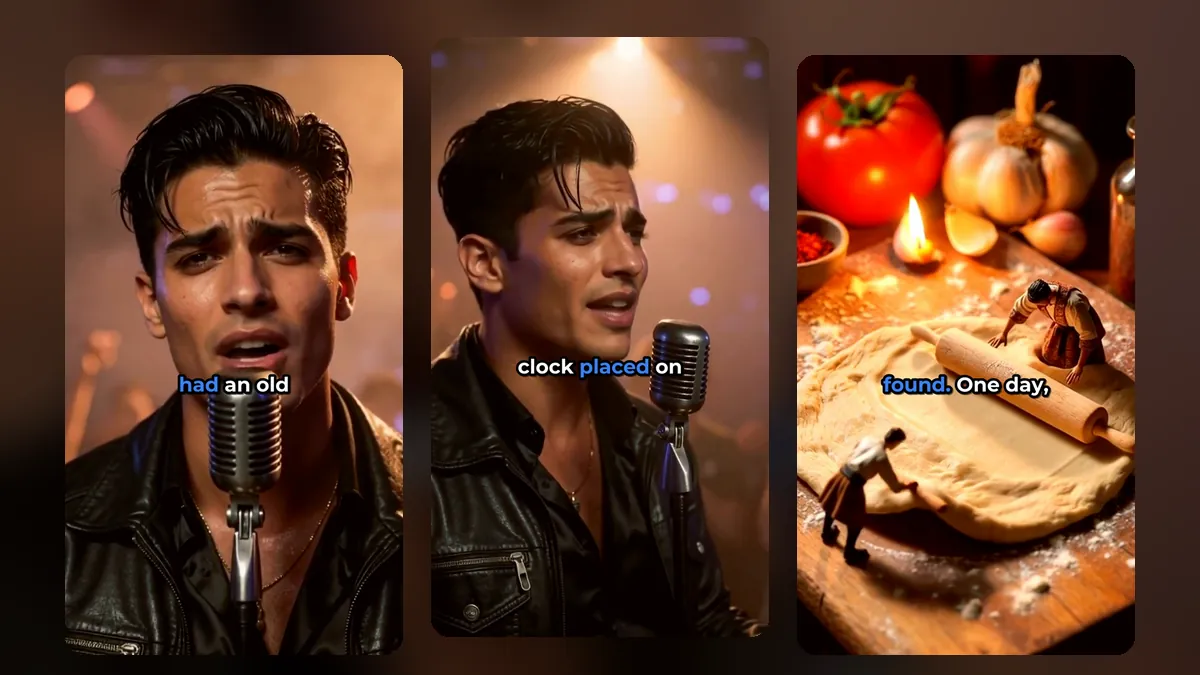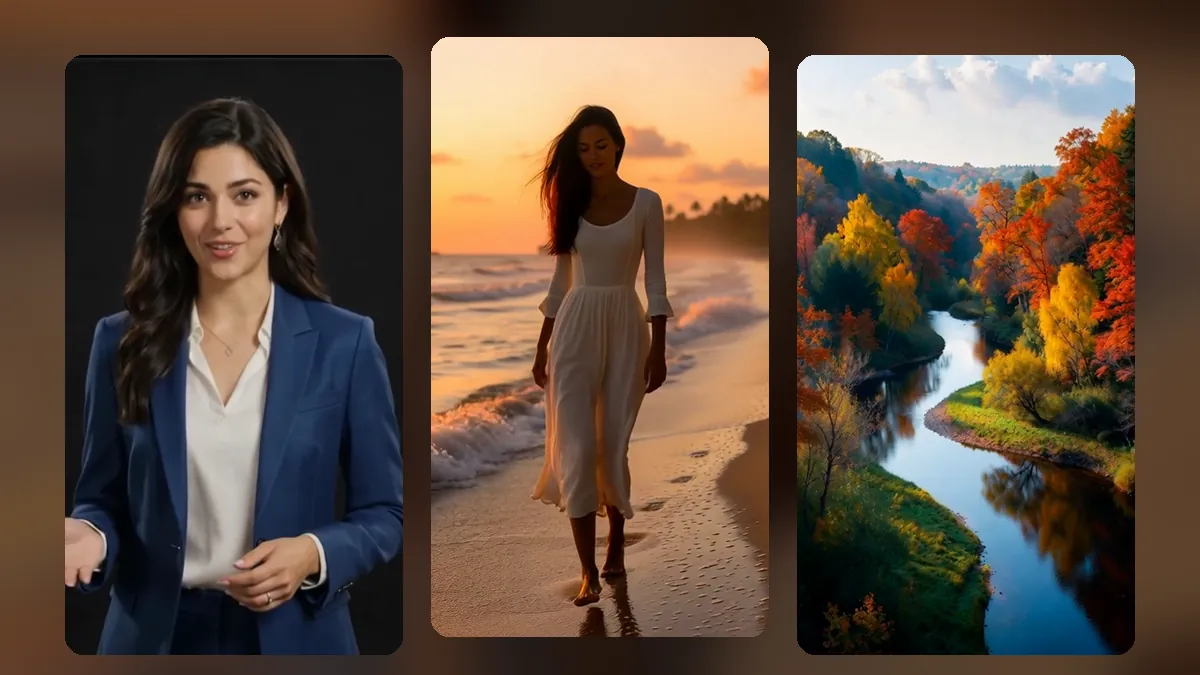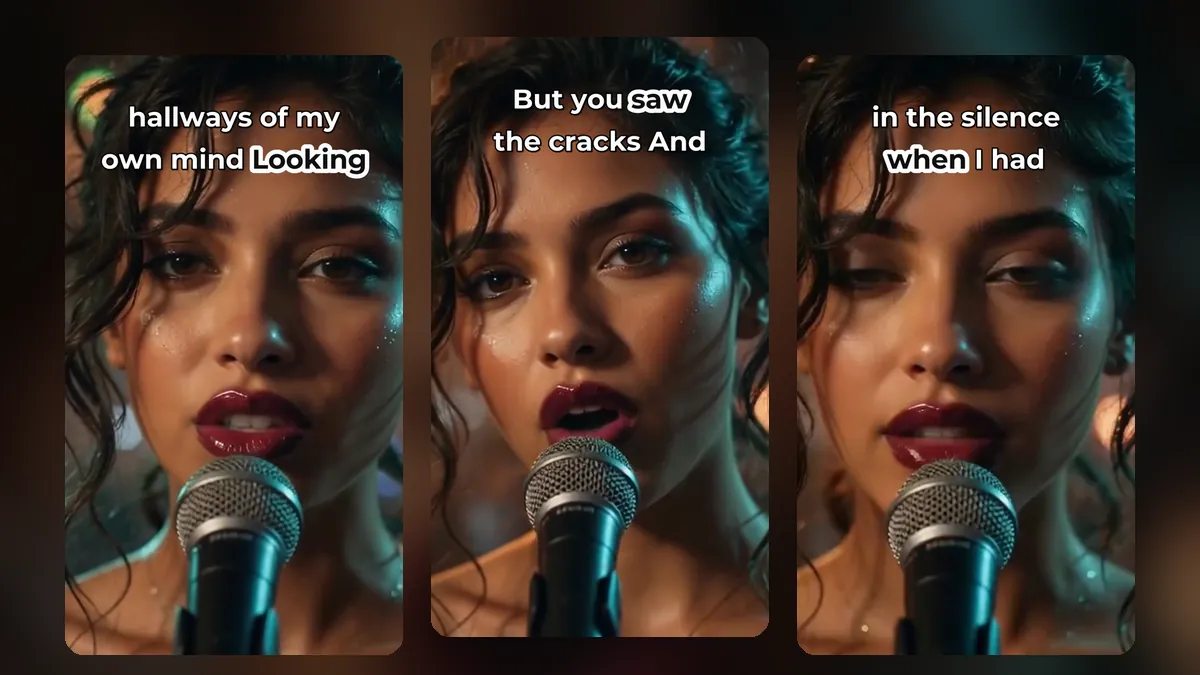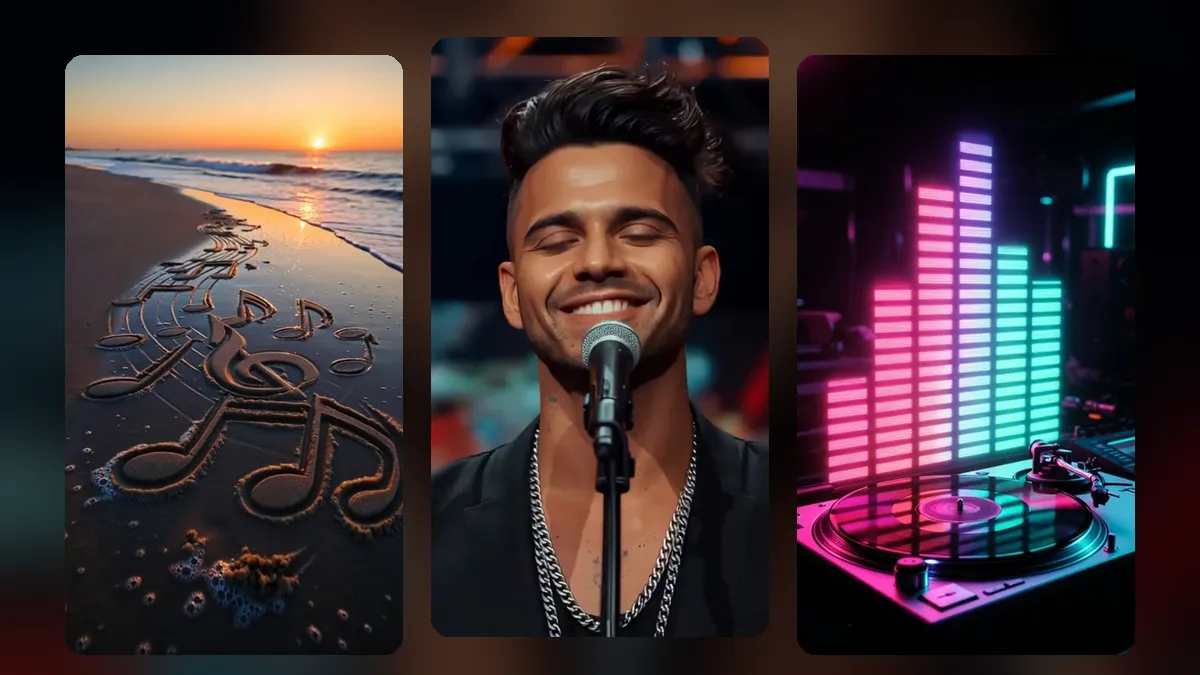
Most cameras, webinars and screen recordings are wide. Shorts, TikTok and Reels are tall. When you cut a 9:16 window out of a 16:9 picture, you keep about a third of the width. If that third is in the wrong place, the speaker is half out of frame and the clip looks broken. This guide shows the ways to reframe a horizontal video to vertical and when to use each.
The problem with a fixed centre crop
A centre crop works when the subject stays in the middle. Real videos are not like that:
- Interview guests sit on the left and the right.
- Presenters walk across the stage.
- Vloggers move closer and further from the camera.
- Two people talk in turn.
A fixed crop will cut off at least one of them at some point. That is why automatic reframing exists.
Option 1: Auto framing that follows the speaker
Auto framing finds faces and people in every part of the video and moves the vertical window to keep the main subject in view. In VideoShort.ai, Auto follows the person who is speaking. It watches mouth movement and the timing of the words, so when two people talk in turn the picture moves to whoever is talking.
Good camera moves should feel calm. VideoShort smooths the movement so the frame does not shake on every small motion, and it jumps straight to the new position on a scene cut instead of sliding across.
Use it for: podcasts, interviews, vlogs, talks.
Option 2: Director mode
Director mode does what a live video editor does. On top of following the speaker, it adds a close-up now and then, can open on a two-person shot, and briefly cuts to an object a person is holding up. It makes a single wide shot feel like it was filmed with more than one camera.
Use it for: music performances, two-person shows, product demos.
A clip from a music video made with MusicClip.ai. Press play to hear it.
Option 3: Move and zoom by hand
Sometimes you know exactly which part of the picture matters, for example a screen recording where the interesting part is in the top left. With Move and zoom you drag the picture on the preview, pick one of nine parts (top left, middle, bottom right and so on), and set the size. It stays that way for the whole clip.
Use it for: screen recordings, slides, product close-ups, fixed cameras.
Option 4: Show the whole picture
Sometimes nothing should be cut off: a group photo, a wide landscape, a slide with text on both sides. Whole picture puts the full wide video in the middle and fills the top and bottom with a soft, blurred copy of the same video. It looks much better than black bars.
Use it for: wide scenery, groups, slides, gameplay with important edges.
Option 5: Keep the centre
Plain centre framing is still useful for videos that were already filmed with the subject in the middle, such as many selfie-style recordings.
How to check your framing
Play the clip once and watch only the edges:
- Is anyone's face cut by the edge at any point?
- Does the frame jump or shake?
- Is text on screen (slides, signs) readable?
If something is off, switch to another mode for that clip. Each clip can use its own framing.
Captions and framing work together
Once the subject is in frame, place captions where they do not cover the face, usually just below the chin or in the upper third. You can drag captions to any height. See caption styles for shorts for more.
Musicians: make the video vertical from the start
If you are making a music video, you can skip reframing altogether. MusicClip.ai can render your music video vertical or horizontal from the beginning. Their post on vertical vs horizontal music videos explains which to choose.
Frequently asked questions
Does auto framing work with two people?
Yes. It follows the person speaking and moves to the other person when they talk. Director mode can also show both together at the start.
What if auto framing follows the wrong person?
Switch that clip to Move and zoom and pick the part of the picture you want, or use Whole picture.
Do I lose quality when I crop?
A vertical crop from a 1080p wide video uses fewer pixels than the original width. Start from the highest quality source you have for the sharpest result.
Try it on your own footage
Create a VideoShort account, upload a wide video and compare Auto, Director and Whole picture on the same clip.