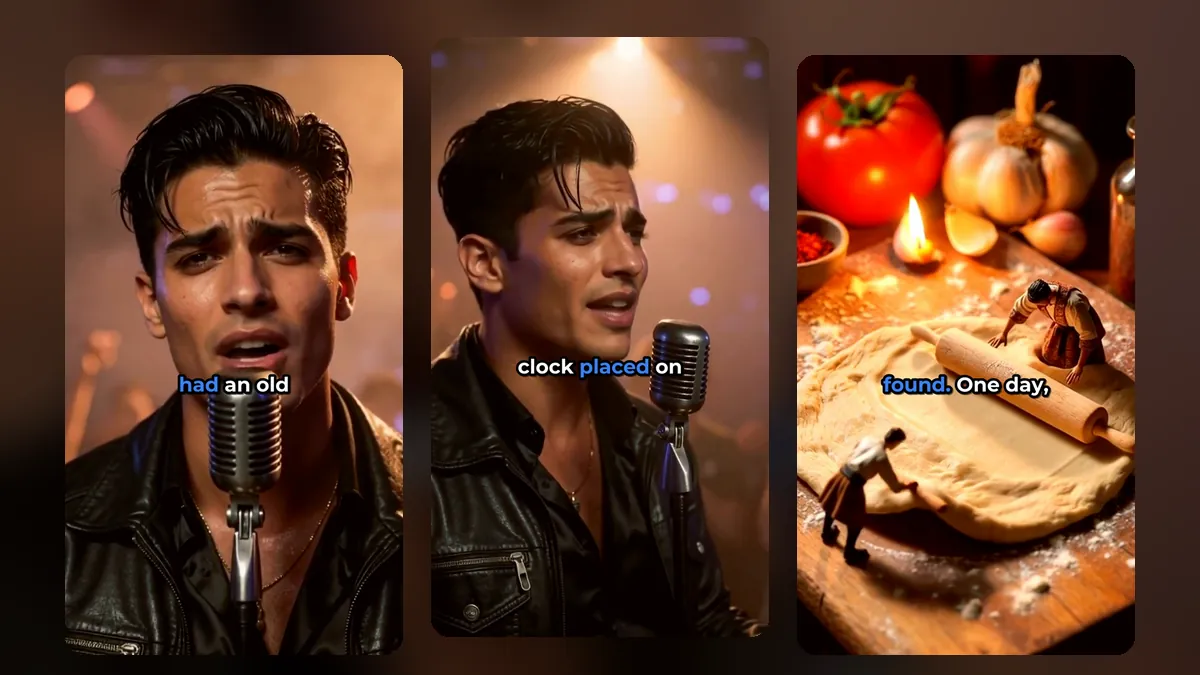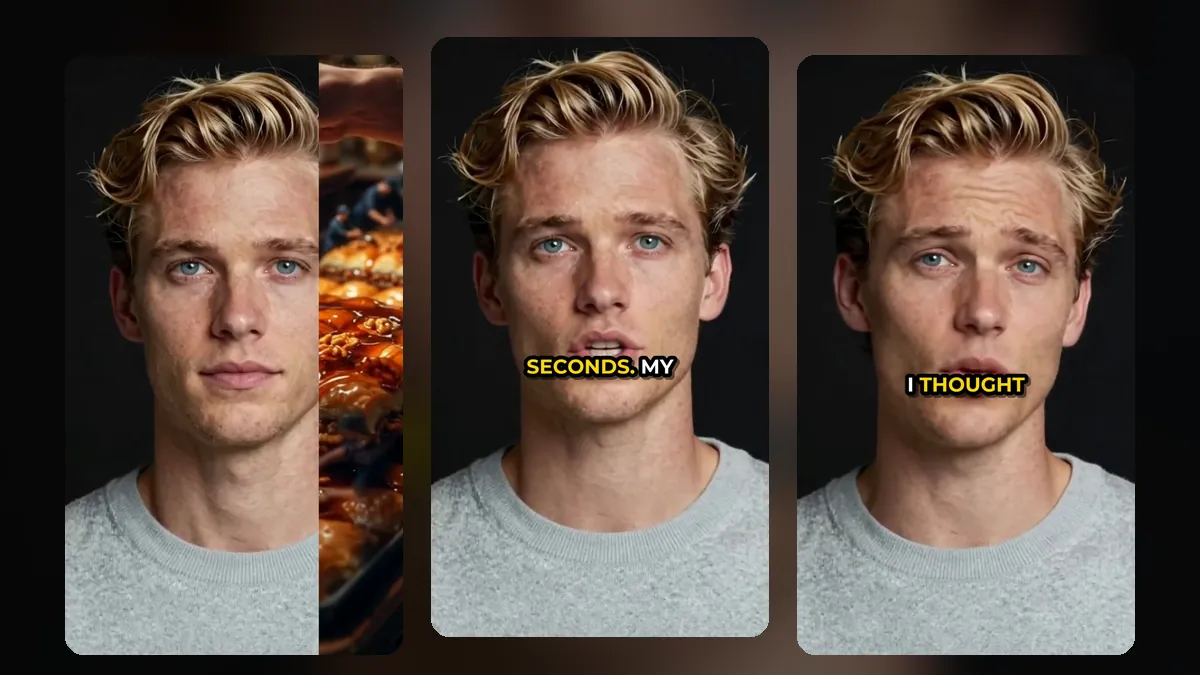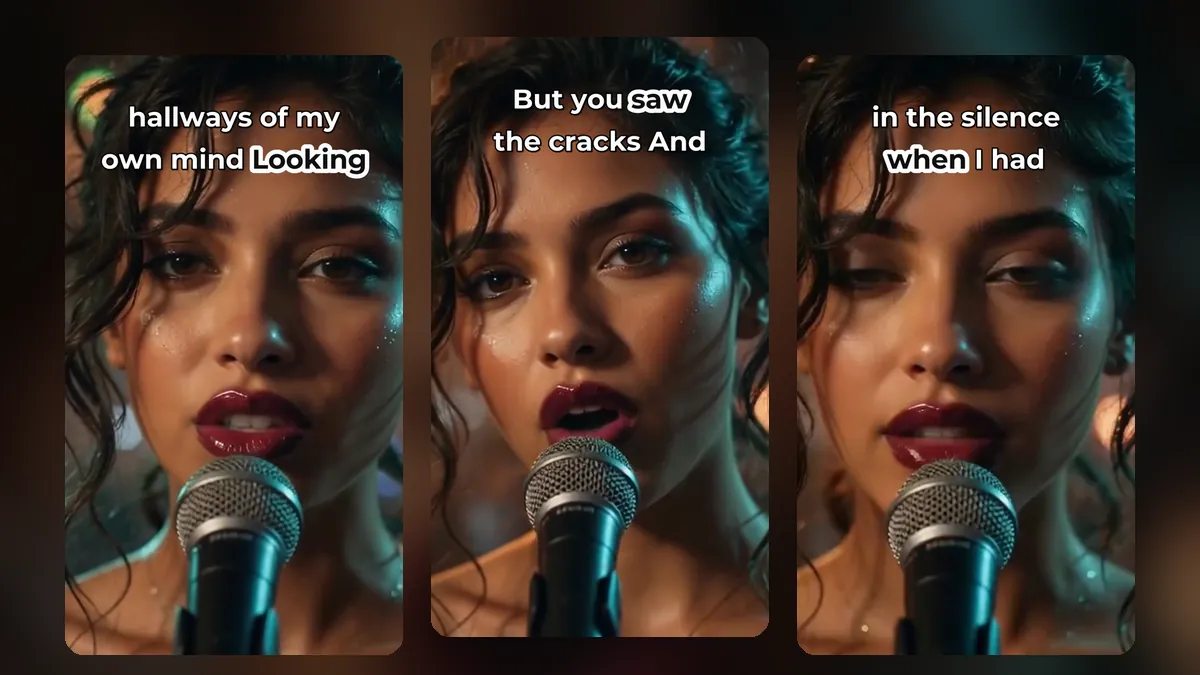
Captions are the first thing people read on a short, often before they hear a single word. A good caption style makes a clip easy to follow with the sound off and gives your videos a look people recognise. A bad one covers faces, flashes too fast or disappears under the app's buttons. Here is how to pick caption styles for shorts that help instead of distract.
Why captions matter on short-form video
- Sound off: a large share of people scroll in public places with the sound muted.
- Attention: moving words keep the eye on the video in the first seconds.
- Clarity: accents, fast speech and noisy rooms are easier to follow with text.
- Search: platforms read the words in your video and your description to understand what the clip is about.
The five choices that decide how captions look
1. Style
The style decides how lines appear and how the spoken word stands out. Broadly there are four families:
- Bold: large capitals, one or a few words at a time. Good for energy, hot takes and reactions.
- Clean: calm text on a band or bar. Good for interviews, lessons and calm voices.
- Fun: glow, neon, wave, rainbow and similar effects. Good for music and light content.
- Word by word: one word at a time, very large. Good for slow, dramatic lines.
VideoShort.ai has 43 caption styles in these groups. You see each one on a sample card before you choose, and the preview on the phone shows your own words in that style.
2. Font
Heavy, simple fonts read best on a small screen. Thin or decorative fonts are hard to read over a moving picture. VideoShort has 14 caption fonts, each shown in its own letters in the font list, from clean sans fonts such as Montserrat and Poppins to condensed display fonts such as Anton and Bebas Neue, playful ones such as Bangers and Luckiest Guy, and a hand-drawn marker. The preview uses the same font files as the final video, so what you see is what you get.
3. Colour
Use two colours at most: one for the line and one for the spoken word. White text with a yellow, red or green spoken word is a safe start. You can set the text colour and the spoken-word colour on every style, and the outline colour in Advanced.
A clip from a music video made with MusicClip.ai. Press play to hear it.
4. Size and position
The bottom fifth of a phone screen is covered by the description, the account name and buttons. Keep captions in the middle or the upper-middle of the frame. Make them large, but check that the longest word still fits. VideoShort shrinks the text automatically when the widest word would go past the edge, both in the preview and in the final video.
You can choose top, middle or bottom, or simply drag the caption on the video to the height you want.
5. Animation
Animations such as pop, bounce, slide up, fade, typewriter and colour fill add energy. Use one. Two animations together look busy, and fast flashing is tiring to watch.
Which caption style for which video?
- Podcast or interview: a clean style on a soft band, white text, one highlight colour.
- Tutorial or lesson: clean style, slightly smaller text, placed above the hands or the screen you are showing.
- Hot take or reaction: bold capitals, two to three words at a time, pop animation.
- Music video: fun styles such as glow or neon, or word by word for the chorus. If you do not have a music video yet, MusicClip.ai can make a lyric or full music video from your song.
- Story or vlog: karaoke-style line with the spoken word highlighted.
Keep your captions consistent
Pick one or two styles for your channel and stick with them. People start to recognise your clips by their look before they see your name. Save your logo and colours once so every new short starts from the same look.
Fix the words before you export
Automatic captions are good, but names, brands and slang are often heard wrong. Before export, open the word list and correct them. In VideoShort you can click a caption on the video to jump straight to that word.
Frequently asked questions
Do captions look the same in the final video as in the preview?
Yes. The preview uses the same fonts and the same size rules as the export, and we measure the two against each other.
Can I turn captions off?
Yes. Untick "Show captions" for clips that do not need them, such as music without vocals.
Can I translate captions?
Yes, into Spanish, German, French, Portuguese, Italian or Russian. See how to translate video captions.
Try the styles on your own clip
The fastest way to choose is to see your own words in each style. Create a VideoShort account, upload a video and try them all on the phone preview.