A one-hour recording from a modern camera can be several gigabytes. Uploading that to a website before you can even start can take a long time on a normal connection, and one dropped connection means starting over. This post explains how VideoShort lets you make shorts from large video files without uploading the whole file first.
Why big uploads are a problem
- Time: a multi-gigabyte upload can take a long time on home internet.
- Reliability: a short drop in the connection can break the upload.
- Waste: most of the file is never used. You might keep ten 40-second clips from a one-hour video.
How browser processing works
On a computer, VideoShort.ai prepares large videos (over about 100 MB) directly in your browser:
- The sound is taken out first. Only the audio, a few megabytes, is sent for transcription and analysis.
- You choose your clips from the suggestions, or mark them yourself, while the video stays on your computer.
- Only the parts you keep are sent to be turned into shorts, cut exactly at the start you chose.
In our tests, a 21-minute, 7 GB video was ready for analysis after about 44 seconds of audio extraction, with a sound file of only about 5 MB.
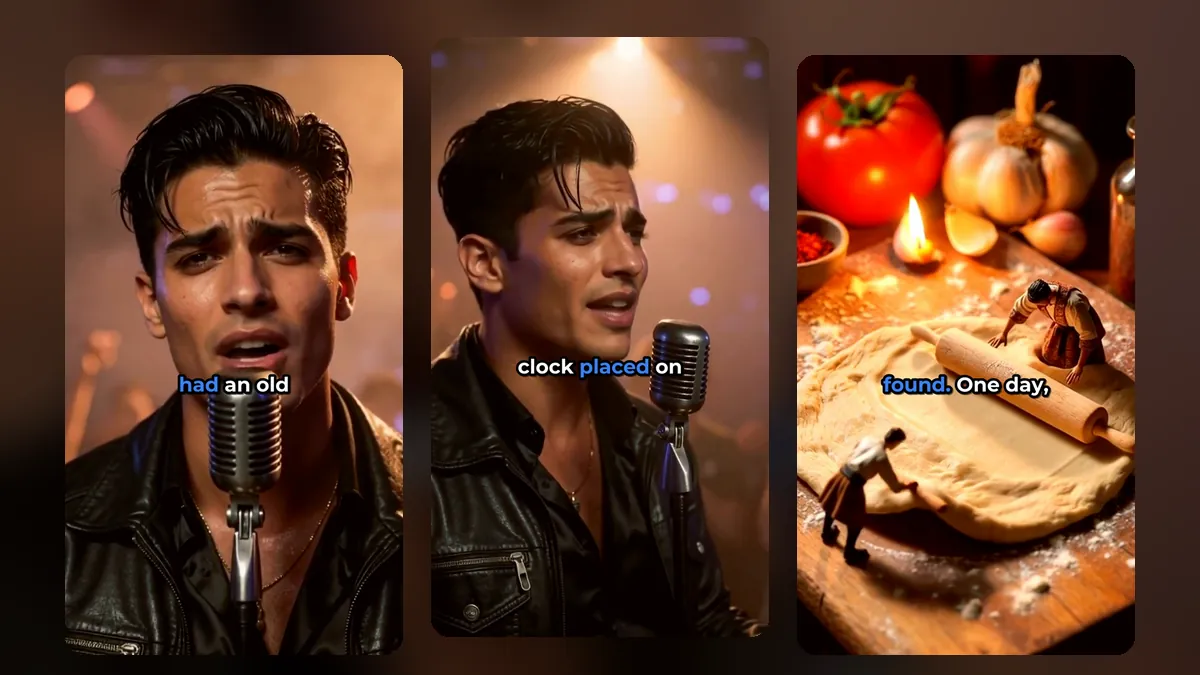
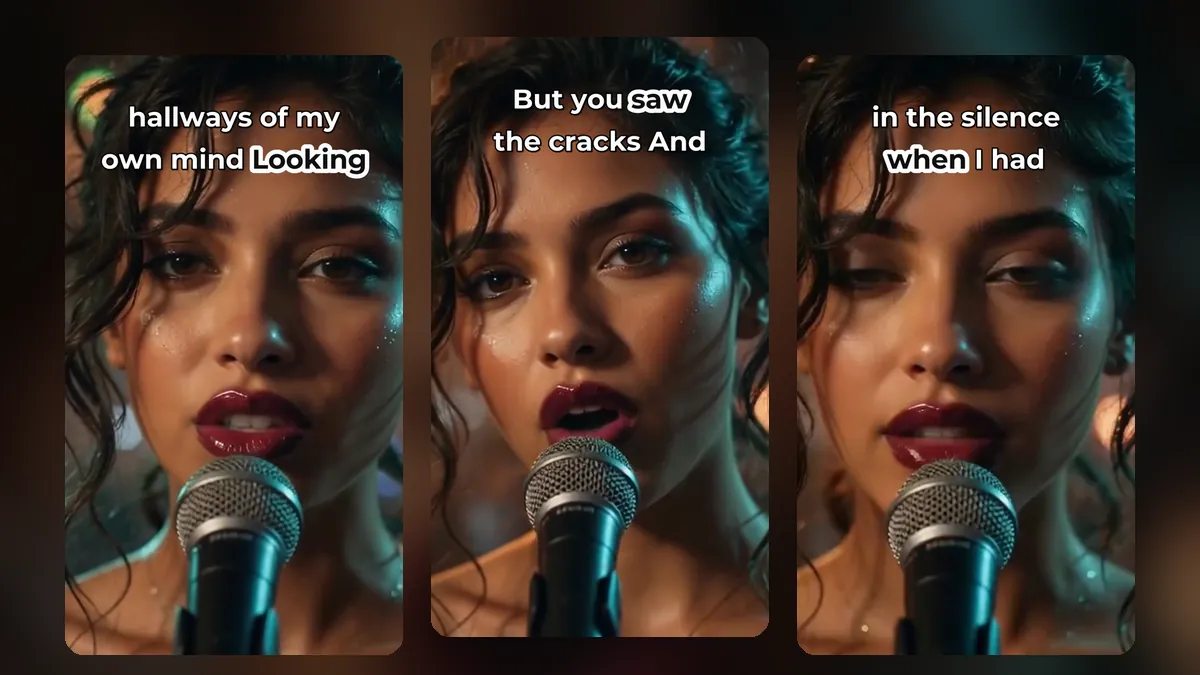
A clip from a music video made with MusicClip.ai. Press play to hear it.
What you need
- A computer with Chrome or Edge. These browsers can keep a link to your file, so if you refresh the page, the video comes back without choosing it again.
- Keep the tab open while the clips are being prepared.
- The original file on your computer until your shorts are made.
On a phone, or for files under about 100 MB, the video is uploaded the normal way.
Tips for very long recordings
- Use the original file. Re-exporting a recording first only costs time and quality.
- Trim dead time if you like. But it is not required: the clip suggestions skip silence anyway.
- Mark your own clips if you already know the moments. See how to find the best moments in a long video.
After the clips are made
Your shorts are stored in your account, and the parts sent for them are removed after the shorts are made. You can open any short in the editor, change captions, framing and effects, and render it again. Download as MP4, SRT captions, or everything as a ZIP.
Then plan them out with a shorts posting schedule.
Who this helps most
- Streamers with multi-hour recordings.
- Teachers with full lessons and lectures.
- Event filmers with long talks or ceremonies.
- Podcasters with long video episodes; see how to turn a podcast into short clips.
Musicians: start from the song, not a big file
If you are a musician, your source might just be an audio file. MusicClip.ai turns an MP3 into a full music video, which you can then cut into shorts here.
Frequently asked questions
Is my full video uploaded to your server?
For large files on Chrome or Edge on a computer, no. Only the audio and the parts you turn into shorts are sent.
What happens if I close the tab by mistake?
In Chrome and Edge, reopen the page: the browser remembers the file, so you can continue without choosing it again.
Does it work on Safari or Firefox?
Large-file browser processing is built for Chrome and Edge on a computer. On other browsers, use a smaller file or the normal upload.
Try it with your biggest file
Create a VideoShort account on a computer with Chrome or Edge and choose your longest recording.